
Quick Answer: To organise important documents on your Android phone, use clear file names, add short descriptions, and keep frequently used files in one place. A document organiser app like Docu Wallet lets you search, view, and share documents whenever you need them.
Your Android phone may contain important files such as PAN cards, Aadhaar cards, driving licences, and rental agreements. When these are scattered across folders, the gallery, and messaging apps, finding the right document can take time.
A document organiser app like Docu Wallet helps you keep important files in one searchable place. This guide explains how to organise your documents without creating a complicated system.
1. Identify the Documents You Need Regularly
Before organising your files, make a list of the documents you may need during activities.
For example, you might need your PAN card for paperwork, your driving licence while travelling or your rental agreement when dealing with a landlord.
Common documents to keep handy include:
- Identity documents: PAN card, Aadhaar card, voter ID and driving licence.
- Financial documents: Bank documents, account details and card-related information.
- Property documents: agreements and other housing records.
- Travel documents: Passport copies, tickets and travel confirmations.
- Personal records: Insurance documents, certificates, receipts and warranties.
Start with the files you access frequently. You can organise frequently used documents later.
2. Check Where Your Documents Are Saved
Android phones offer places to store files. Before moving anything, check where your existing documents are located.
- Gallery: This may contain photographs of identity cards, receipts and other paperwork.
- Downloads: PDFs and files downloaded from websites, emails or messaging apps may appear here.
- File manager: Your phone’s file manager helps you browse folders and locate saved documents.
- Messaging apps: You may have received documents from family members, colleagues or service providers.
- Email attachments: Important PDFs and scanned copies may still be attached to emails.
You do not need to move every file. Start by locating the documents you use regularly and deciding where you want to keep them.
This simple step helps you understand what you already have and reduces the chances of saving duplicates.
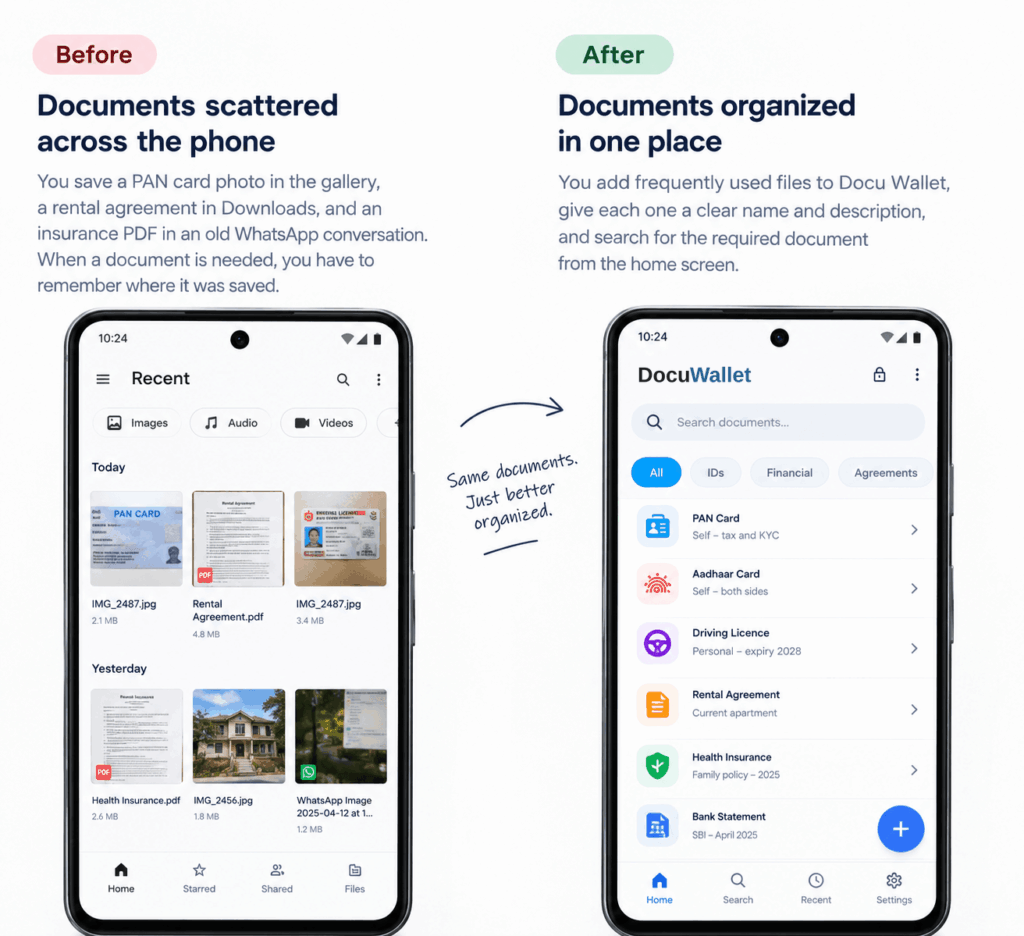
3. Give Every Document a Clear Name and Description
Names such as IMG_2045.jpg or Scan_001.pdf do not tell you much about a file. Use clear names and short descriptions to identify documents quickly.
For Example:
| Document | Suggested name | Description |
| PAN card | PAN Card | Self – tax and KYC |
| Driving licence | Driving Licence | Personal – expiry details |
| Rental agreement | Rental Agreement | Current apartment |
| Insurance policy | Health Insurance | Family policy |
If you have documents for multiple family members or properties, include a relevant identifier to distinguish them.
Docu Wallet lets you add a name and description to each document, making your collection easier to organize and search. Keep descriptions brief and avoid including unnecessary personal information.
4. Use a Document Organiser App
A document organiser app gives you a place to keep personal documents instead of relying on several unrelated folders and apps.
When choosing a document app, consider how you normally use your files. Look for features such as:
- Adding documents from your phone’s camera, gallery or files.
- Searching by document name or description.
- Viewing PDFs and images.
- Accessing saved documents without an internet connection.
- Sharing documents through apps.
- PIN-protected access.
- Synchronisation options.
Docu Wallet is designed around storing and retrieving documents. You can add a file, give it a name and description and search for it from the home screen. Its search-first design makes it easier to find a document without browsing through folders.
Then, instead of building a complicated folder structure, you can focus on naming your documents clearly and using search when you need them.
5. Keep Documents Organized and Easy to Find
Your phone may contain screenshots, receipts, photos, work files, and important documents. Keeping everything together can make it difficult to find the right file when you need it.
Docu Wallet gives your personal documents a dedicated space. You can add files from your camera, gallery, or phone storage, then search by name or description. For example, type “PAN,” “bank,” or “rental” to find the document you need without browsing through multiple folders.
You can also access recently opened documents through the app’s recent entries. Start with the files you use most often, then add other important documents when convenient.
6. Keep Documents Available When You Are Offline
You may need a document while travelling at an airport or somewhere with connectivity.
For this reason, offline access is worth considering when choosing a documents app.
Docu Wallet follows a first approach. Documents saved on your device remain available without an internet connection.
This can help when you need to check a saved file but cannot rely on an internet connection at that moment.
If you use synchronisation for backup, remember that synchronisation and offline access serve different purposes. Offline access helps you open documents already saved on your device, while synchronisation helps keep your documents available through your backup setup.
7. Keep a Backup and Review Your Documents
An organised document collection also needs occasional maintenance.
If your phone is lost, damaged or replaced, a backup can help you restore your files. Docu Wallet supports synchronisation with your Google Drive account, allowing you to back up documents without storing them on Docu Wallet’s servers.
Make sure you can access your Google account and keep its login credentials protected. It is also useful to review your document collection from time to time.
During your review:
- Remove copies you no longer need.
- Replace documents with current versions.
- Check expiry dates on licences and policies.
- Update descriptions when circumstances change.
- Make sure your backup is available when required.
A short review every few months can help keep your collection useful without turning document management into another task.
Organise Your Documents With Docu Wallet
You do not need a complicated system to manage important documents on your Android phone. Clear names, useful descriptions, and a dedicated place for personal files can make a noticeable difference.
Docu Wallet brings document storage, search, viewing, and sharing together in one app. You can add files from your camera, gallery, or phone storage, find them using their names or descriptions, and access saved documents offline.
The app offers PIN-protected access, Google Drive synchronisation, and a free plan that supports up to 10 documents.
Download Docu Wallet to start organising your important documents in one searchable place.
Frequently Asked Questions
1. How can I organise documents on my Android phone?
Start by locating your important files, giving them clear names, and keeping them in a dedicated place. A document organiser app such as Docu Wallet lets you add documents and search for them by name or description.
2. What is the best document organiser app for Android?
A good document organiser app should make it easy to add, search, view, and share personal documents. Docu Wallet offers name and description search, PDF and image viewing, offline access, PIN-protected access, and Google Drive synchronisation.
3. Can I store PDFs and images in Docu Wallet?
Yes. Docu Wallet supports PDF and image documents. You can add files from your camera, gallery, or phone storage and give them names and descriptions.
4. Can I access my documents without the internet?
Yes. Documents saved on your device in Docu Wallet remain available offline. Synchronisation can take place when you are connected again.
5. How can I find a document quickly on my phone?
Use a recognisable document name and, where useful, a short description. In Docu Wallet, you can search by name or description from the home screen rather than browsing through multiple folders.
6. Can I back up documents stored in Docu Wallet?
Docu Wallet supports synchronisation with your own Google Drive account. This can help you restore your documents when you connect the app on another device using the same account.
7. Is Docu Wallet free to use?
Docu Wallet offers a free plan that allows you to store up to 10 documents. An Unlimited plan is also available for a one-time payment of ₹199, according to the current product information.


